
Easy access anytime.
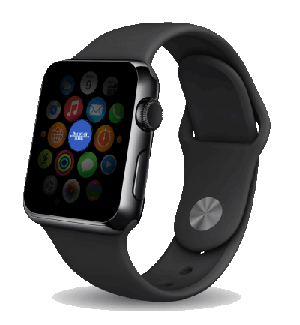
Enable the Feature from the Dacotah Bank Mobile App
- Before you can view balances on your Apple Watch, you must first enable the feature in your Dacotah Bank app.
- Log into your Dacotah Bank app, and access Apple Watch from the Main Menu, under Settings, to enable the feature.
Add a card on Apple Watch.
You can add Apple Account, credit, debit, and transit cards, right on Apple Watch.
- Open the Wallet app on your Apple Watch.
- Tap the More Options button, then tap Add Card.
- Choose Apple Account, Debit or Credit Card, or Transit Card; then follow the onscreen instructions.
View Account Balances
- Once enabled, you can view your Account Balances. (The first 10 accounts that show on the Account Summary Page will display).
- If you have more than 10 accounts, you can re-order the display from the account summary page in your Dacotah Bank app or on your desktop.
- On your Apple Watch, swipe left and right to scroll through and view different Account Balances.
View Transactions
- You can also view the 10 most recent transactions for each account via your Apple Watch.
- To view transactions, tap on the Watch screen and swipe up and down to scroll through the transactions list. There is also a Back option to navigate back to the Account list.